
Source: https://www.eizoglobal.com/library/basics/windows-10-multi-display-function/index.html
Source: https://www.eizoglobal.com/library/basics/windows-10-multi-display-function/index.html


 |
|  |
|  |
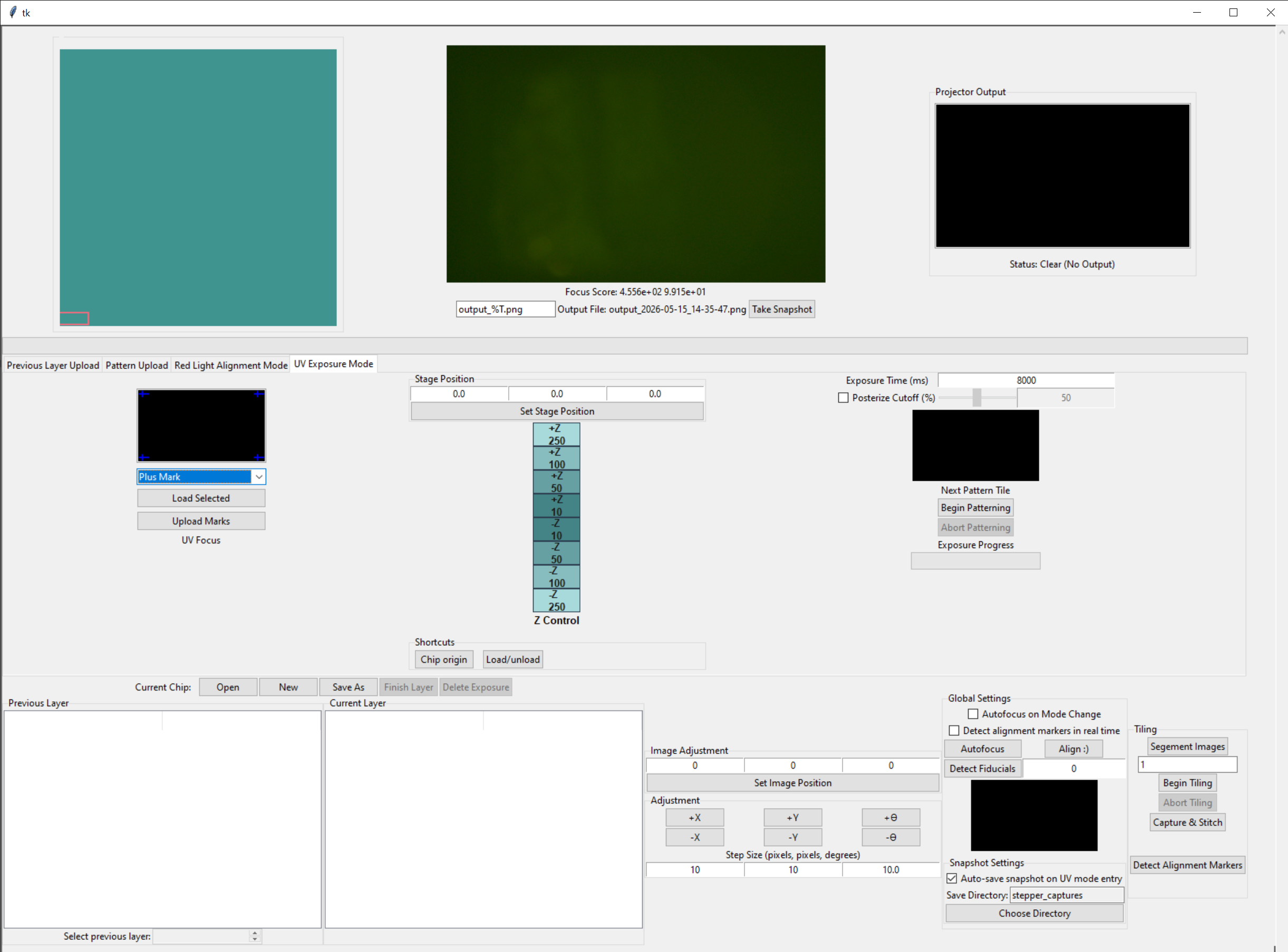
The deployed stepper software interface has three main modes as seen above. The pattern upload mode is used to upload a custom mask that we wish to pattern.
Red mode is used for positioning the stage to a location to which we desire to pattern. Because photoresist is most much less sensitive to the wavelength of red light, we can safely shine it on a chip coated in photoresist without causing the resist to react drastically to the light while we are moving the stage for positioning.
UV mode is used to project our mask onto the chip and expose the unmasked portion of the chip to UV light, and thereby creating a reaction with the photoresist on the chip.
It's best to start by uploading a pattern of interest, then moving into red mode for positioning, the finally into UV mode for exposure.
## Stage Movement
There are 2 main ways to move the stage manually. Absolute and Relative.
Stepper V2.1 uses 3 stages: X, Y, and Z. *A* [*newer version of the stepper*](https://docs.hackerfab.org/home/working-docs/nanopositioner-wip/micromanipulator) *(that is in its validation phase) that uses an open-source micromanipulator stage has an additional rotational stage.*
To move the stepper using **relative coordinates**, refer to the teal-colored circular panel, as seen in the image demonstration below, and click on the arcs that are meant for X-axis movement (labeled 'X'). The same is done for the Y-axis. Each ring in the circle represents the step resolution, quantified in step units. The Z-axis-equivalent of this is to the right of the circular ring, in a single-column gradient-like panel in which the largest positive step size is at the top, and the largest negative step size is at the bottom.
|
The deployed stepper software interface has three main modes as seen above. The pattern upload mode is used to upload a custom mask that we wish to pattern.
Red mode is used for positioning the stage to a location to which we desire to pattern. Because photoresist is most much less sensitive to the wavelength of red light, we can safely shine it on a chip coated in photoresist without causing the resist to react drastically to the light while we are moving the stage for positioning.
UV mode is used to project our mask onto the chip and expose the unmasked portion of the chip to UV light, and thereby creating a reaction with the photoresist on the chip.
It's best to start by uploading a pattern of interest, then moving into red mode for positioning, the finally into UV mode for exposure.
## Stage Movement
There are 2 main ways to move the stage manually. Absolute and Relative.
Stepper V2.1 uses 3 stages: X, Y, and Z. *A* [*newer version of the stepper*](https://docs.hackerfab.org/home/working-docs/nanopositioner-wip/micromanipulator) *(that is in its validation phase) that uses an open-source micromanipulator stage has an additional rotational stage.*
To move the stepper using **relative coordinates**, refer to the teal-colored circular panel, as seen in the image demonstration below, and click on the arcs that are meant for X-axis movement (labeled 'X'). The same is done for the Y-axis. Each ring in the circle represents the step resolution, quantified in step units. The Z-axis-equivalent of this is to the right of the circular ring, in a single-column gradient-like panel in which the largest positive step size is at the top, and the largest negative step size is at the bottom.

 |
|  |
| .png?alt=media&token=ec0cd277-734e-4cc2-b436-4016429b0867) |
When we're trying to position our stage (to look for a clean, evenly coated surface to pattern on), we commonly use Solid Red mode in order to see the entire area of the chip on which we're planning to add our pattern.
Once we find a good spot, we must then toggle with the z-stage to focus our chip. We can use Same as Pattern to help us evaluate how 'in-focus' we are. Inverse of Pattern can be used if we wish to invert the mask and pattern that instead (ie. what was exposed on the original mask will not be un-exposed, and what was un-exposed will now be exposed during patterning).
For multi-layering patterning, it's very possible that users may take the chip off after the first layer of patterning, do some work on the chip, then put the chip back on the stepper stage platform. This can introduce rotational differences between the original placement of the chip, and the next placement for the next layer. Hence, we introduce the image position feature to allow users to rotate a mask projection to fit the rotational errors between layers of patterning
|
When we're trying to position our stage (to look for a clean, evenly coated surface to pattern on), we commonly use Solid Red mode in order to see the entire area of the chip on which we're planning to add our pattern.
Once we find a good spot, we must then toggle with the z-stage to focus our chip. We can use Same as Pattern to help us evaluate how 'in-focus' we are. Inverse of Pattern can be used if we wish to invert the mask and pattern that instead (ie. what was exposed on the original mask will not be un-exposed, and what was un-exposed will now be exposed during patterning).
For multi-layering patterning, it's very possible that users may take the chip off after the first layer of patterning, do some work on the chip, then put the chip back on the stepper stage platform. This can introduce rotational differences between the original placement of the chip, and the next placement for the next layer. Hence, we introduce the image position feature to allow users to rotate a mask projection to fit the rotational errors between layers of patterning

 |
|  |
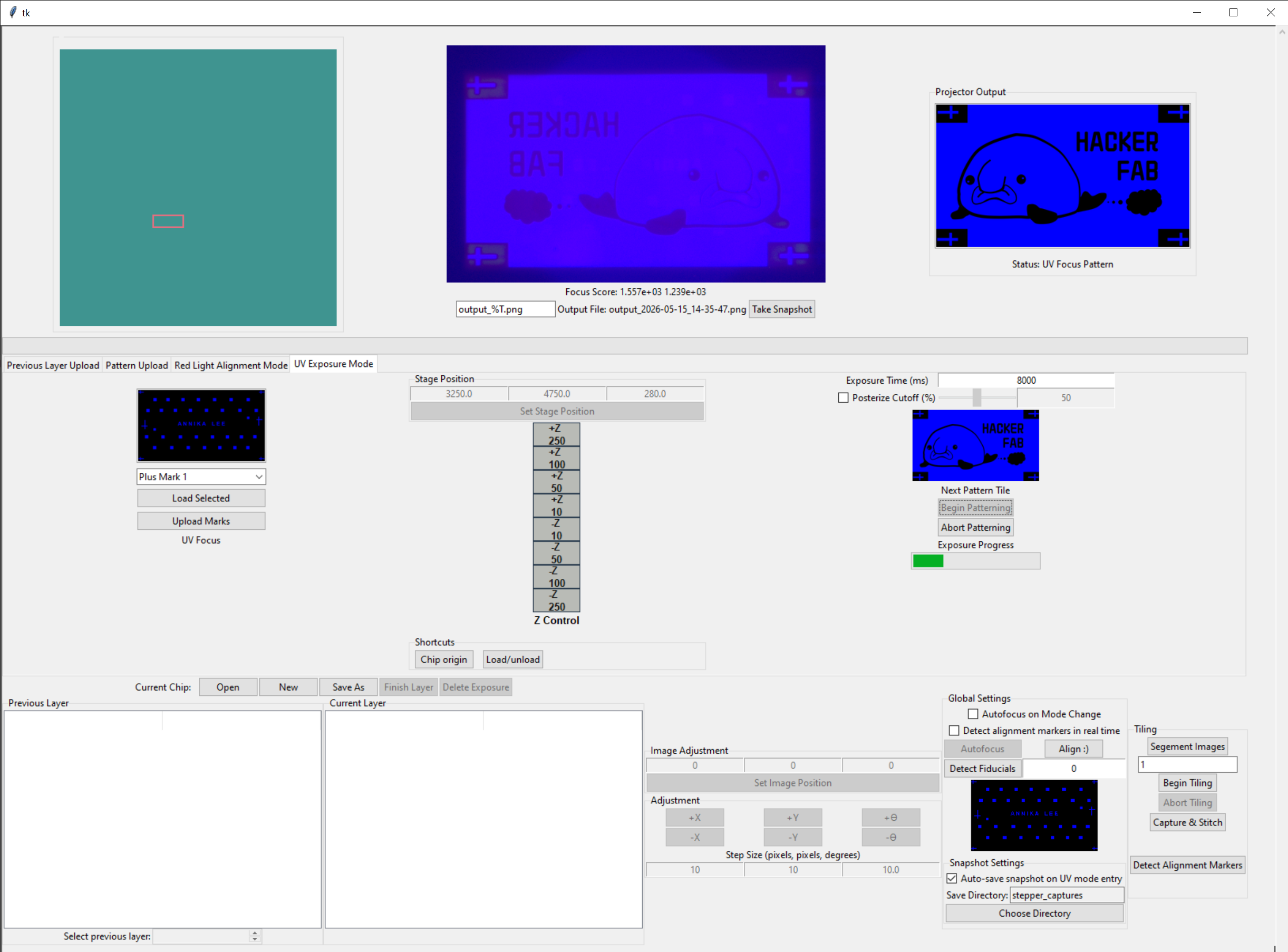
However, depending how the stepper is assembled, this can vary. The `Load Markers` feature (on the left side of the GUI) allows users to pre-expose alignment markers onto the chip so that some form of projection can be seen in advance and users can use them to verify focus level of the projection in UV mode. Loading markers will allow benefit multi-layer patterning, where users wish to align the previous layer to the current by referencing the previous layer's alignment markers to the current mask.
An extra feature that was introduced recently was the ability to load custom alignment markers so that masks don't need to be designed to work around a hard-coded set of alignment markers in the four corners.
**The steps to using this feature** include:
1. If you wish to upload alignment markers, click on `Upload Marks` , which opens a file window that allows you to select for a new alignment marker mask. Then move onto Step 2
2. You may press `Load Selected` to project the alignment mask onto the chip in UV mode. **Ensure that the selected mask you are loading is the one you intend to load. If the preview image above the dropdown menu doesn't look right, then use the dropdown menu to select the actual mask you want to use**.
3. Focus the projection to your liking
## Patterning Mask
To customize your exposure, you may change the `Exposure Time (ms)` to change the number of milliseconds we expose the mask to UV light. You can also change the Posterization Cutoff percentage. Clicking `Begin Patterning` will start your official exposure based on the settings configured, and you will see a progress bar appear under `Exposure Progress` .
During exposure, it's important for there to be as little vibration as possible to the stepper and the platform that supports it. This allows for accurate, precise exposures.
|
However, depending how the stepper is assembled, this can vary. The `Load Markers` feature (on the left side of the GUI) allows users to pre-expose alignment markers onto the chip so that some form of projection can be seen in advance and users can use them to verify focus level of the projection in UV mode. Loading markers will allow benefit multi-layer patterning, where users wish to align the previous layer to the current by referencing the previous layer's alignment markers to the current mask.
An extra feature that was introduced recently was the ability to load custom alignment markers so that masks don't need to be designed to work around a hard-coded set of alignment markers in the four corners.
**The steps to using this feature** include:
1. If you wish to upload alignment markers, click on `Upload Marks` , which opens a file window that allows you to select for a new alignment marker mask. Then move onto Step 2
2. You may press `Load Selected` to project the alignment mask onto the chip in UV mode. **Ensure that the selected mask you are loading is the one you intend to load. If the preview image above the dropdown menu doesn't look right, then use the dropdown menu to select the actual mask you want to use**.
3. Focus the projection to your liking
## Patterning Mask
To customize your exposure, you may change the `Exposure Time (ms)` to change the number of milliseconds we expose the mask to UV light. You can also change the Posterization Cutoff percentage. Clicking `Begin Patterning` will start your official exposure based on the settings configured, and you will see a progress bar appear under `Exposure Progress` .
During exposure, it's important for there to be as little vibration as possible to the stepper and the platform that supports it. This allows for accurate, precise exposures.


.png?alt=media&token=4a3049d6-1a92-4b9a-8841-5bb8d6377edb)
.png?alt=media&token=68c4bd17-ec55-4b11-82f0-ae752ad1da92)

.png?alt=media&token=3807fde1-9ff8-4357-8743-b658ebf01638)


